



Spin Up An Angular Application
This tutorial won't cover Angular install and setup. The Angular CLI will guide you through the steps to create a basic Angular application.
$ ng new geolocation-app
Once the app is up, navigate to the root folder and start the server.
$ cd geolocation-app

$ ng serve
Visit https://localhost:4200 in the browser to see the app up and running.
Set Up Your HTML File
Open app.component.html and remove all the HTML tags except the two outermost <div>s and the <style> tags. Replace everything with a single <p> tag inside the <div>s.
<style>

...

</style>

<!-- Toolbar -->

<div>

  <p>This is where we'll show our IP</p>

</div>
<!-- * -->
Import the Httpclientmodule
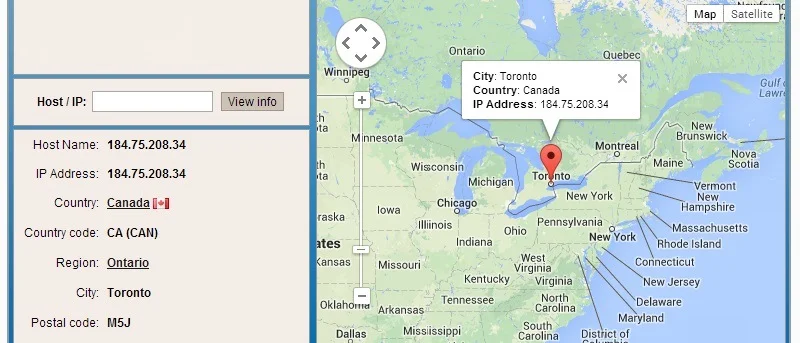
Angular has a built-in HTTP client for sending REST requests. We'll use this observable based abstraction to send a request to the geolocation API endpoint. The endpoint will send a response with the IP address of the device that sent the request, along with geolocation data for that IP address.
In order to use the Httpclientmodule, import it into app.module.ts.
import { NgModule } from '@angular/core';

import { BrowserModule } from '@angular/platform-browser';

import { AppRoutingModule } from './app-routing.module';

import { AppComponent } from './app.component';

import { HttpClientModule } from '@angular/common/http';

@NgModule({

  declarations: [

    AppComponent

  ],

  imports: [

    BrowserModule,

    AppRoutingModule,

    HttpClientModule

  ],

  providers: [],

  bootstrap: [AppComponent]

})

export class AppModule { }
The service file emits object import service modules for the rest of the application to use. The Angular part of setup is done. We're now ready to send a request to the AbstractAPI endpoint.
Get Started With AbstractAPI
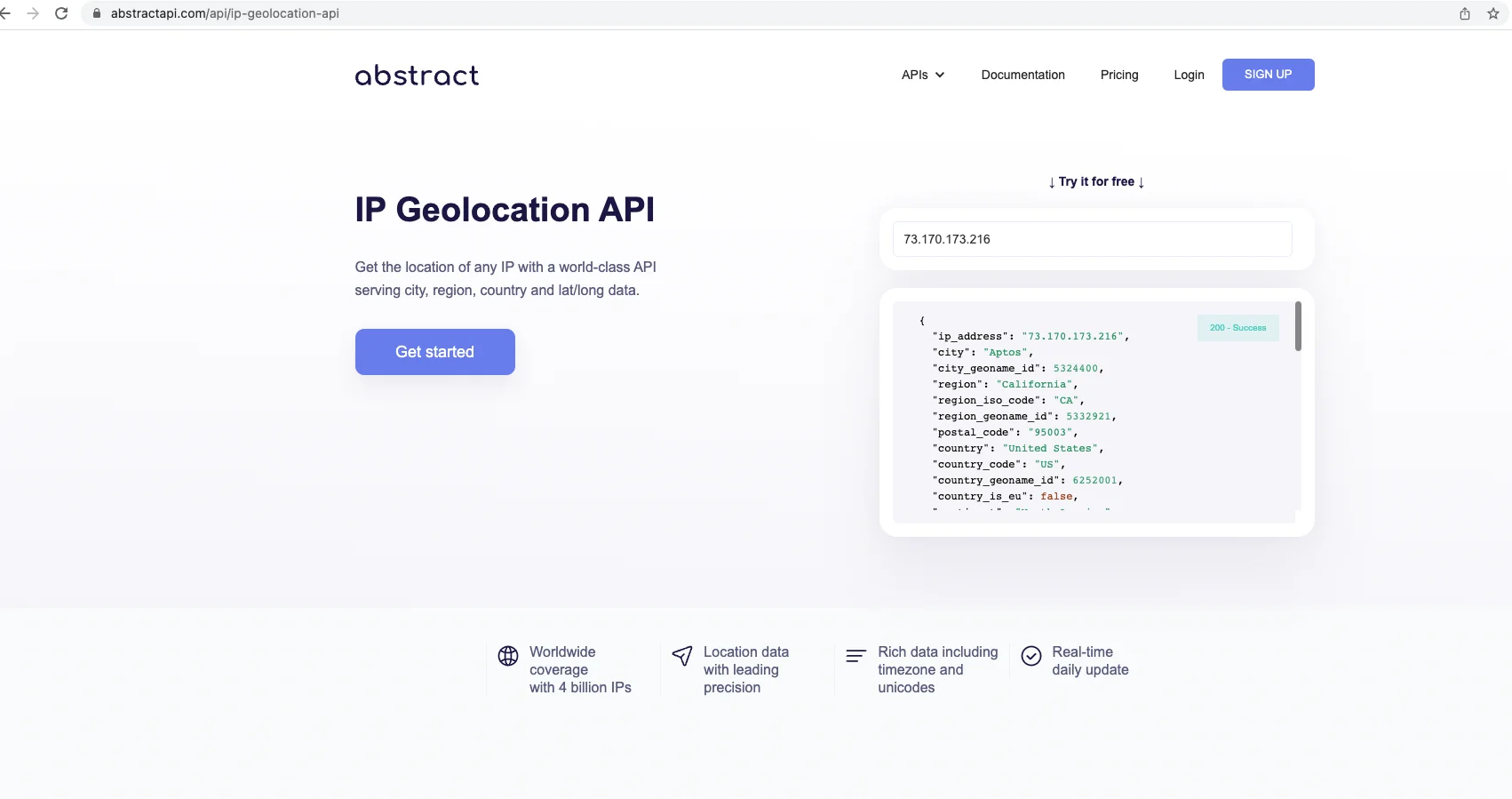
Navigate to the geolocation API homepage and click the blue "Get Started" button.
Get the Authentication Information You Need
Copy the URL for the API endpoint and the API key into variables in your component file (app.component.ts.)
  api_key = 'YOUR API KEY';

  url = 'https://ipgeolocation.abstractapi.com/v1/?api_key=' + this.api_key;
Get the Client IP Address
The function that will handle sending the request to the API will be called getGeolocationData. Write it underneath the component ngOnInit function and call the function inside ngOnInit.
import { Component } from '@angular/core';

import { HttpClient  } from '@angular/common/http';

@Component({

  selector: 'app-root',

  templateUrl: './app.component.html',

  styleUrls: ['./app.component.css']

})

export class AppComponent {

  title = 'geolocation-app';

  api_key = 'YOUR API KEY';

  url = 'https://ipgeolocation.abstractapi.com/v1/?api_key=' + this.api_key;


  constructor(private http:HttpClient) { }


  ngOnInit() {

      this.getGeolocationData();

  }


  getGeolocationData()

  {

    this.http.get(this.url).subscribe((res:any)=>{

      console.log(res.data)

    });

  }

}
Inside the callback function for the Http object import service we are logging the data we receive from the geolocation API.
Handle the API Response
Let's display the user's IP address, city, region, and country in the browser. There are many other optional properties on the response object that would be useful in a real application, but for now we won't worry about those.
Render the API Data
We'll create three variables called ipAddress, city, country, and region inside the app.component.js file, and initialize them all as empty strings. You can put them just below the variables you created for the api key and URL.
…

  api_key = 'YOUR API KEY';

  url = 'https://ipgeolocation.abstractapi.com/v1/?api_key=' + this.api_key;

ipAddress = '';

city = '';

region = '';

country = '';

…
Once the request comes back from the API, update these three variables with the values from the JSON object. Pull the values out inside your getGeolocationData function and assign them to the variables.
   this.http.get(this.url).subscribe((res:any)=>{

      this.ipAddress = res.data.ip_address;

      this.city = res.data.city;

      this.region = res.data.region;

      this.country = res.data.country;

    });
Add the Variables to the HTML Template
Next, we'll render those variables inside the <p> tag we created in app.component.html. Remove the placeholder text you added and replace it with a string that interpolates the four variables.
<!-- Toolbar -->

<div>

  <p>Hello! Your IP address is: {{ipAddress}}. You live in {{city}} in {{region}}, {{country}}</p>

</div>

<!-- * -->
Go back to https://localhost:4200 to see your string rendered in the browser.
Conclusion
There is no single correct approach to getting a user position object in Angular. This article explored one easy way to get a user's IP address and geolocation data for that IP address in an Angular app. We used the AbstractAPI free Geolocation API endpoint to do this.
FAQs
How Do I Get Geolocation in Angular?
One way to get geolocation information in Angular is to use the browser's built-in Geolocation API. This is a read-only API with ubiquitous browser support that gives you access to the local devices' geolocation data, which includes the latitude and longitude coordinates of the user's current position. The information is attainable through a method called getCurrentPosition, which returns a Geolocation Position object with the coordinate points.
What is Navigator Geolocation?
Navigator Geolocation is an API that is built into the browser and gives your web application access to the latitude and longitude of the device's current position. Through it, you can observe user position. The Navigator geolocation API can be accessed by any app running in the browser, and a user position geolocation token is returned through a method called getCurrentPosition.
How Do I Get Geolocation API?
The Geolocation API is accessible through the Navigator object in the browser. It has widespread browser support. Any application running in the browser can access the Navigator object globally.
Frequently Asked Questions
What is IP geolocation in Angular and how does it differ from the browser Geolocation API?
IP geolocation determines a user's location (city, region, country) from their IP address by calling an external API, with no browser permission prompt required. The browser Geolocation API, by contrast, uses device GPS or network triangulation to return precise coordinates, but it requires the user to explicitly grant location access.
How do you get a user's IP address and location in an Angular app?
Import HttpClientModule into your app.module.ts, then inject Angular's HttpClient into a component or service. Make an HTTP GET request to an IP geolocation API (such as Abstract's Geolocation endpoint) passing your API key, then subscribe to the Observable response to extract fields like IP address, city, region, and country.
Why do you need HttpClientModule to use geolocation in Angular?
Angular does not include HTTP capabilities by default: you must import HttpClientModule from @angular/common/http in your root app module to unlock the HttpClient service. Without this import, injecting HttpClient into a component or service will throw a runtime error.
When should geolocation data be fetched in an Angular component lifecycle?
Fetch geolocation data inside the ngOnInit lifecycle hook, not the constructor. The constructor should only handle dependency injection; ngOnInit runs after the component is fully initialized and is the correct place to trigger HTTP requests and bind the response data to template variables.
Does IP-based geolocation in Angular require the user to grant location permission?
No. Because IP geolocation is resolved server-side by a third-party API, the browser never prompts the user for location access. This makes it a simpler alternative when precise coordinates are not needed and a frictionless user experience is a priority.
How do you integrate Abstract's IP Geolocation endpoint into an Angular service?
Sign up for an Abstract account to obtain a free API key, then call the geolocation endpoint via Angular's HttpClient using your key as a query parameter. Subscribe to the returned Observable in ngOnInit, then assign the response fields (city, region, country, etc.) to component properties and interpolate them in your template with double-curly-brace syntax.
