


Get Started With an Angular App
The first thing we'll do is spin up a basic Angular app using the Angular CLI. This tutorial won't go in-depth into how to configure your Angular application, or how to work with Angular. There is more information about how to do this in the Angular docs.
Spin Up A New Angular Application
Use the CLI to create a new Angular application. The CLI will guide you through the setup process and will take a minute to install dependencies.
$ ng new angular-ip-appOnce the app is created, cd into the root folder and start up the server.
By default, the app runs on port 4200, so head to https://localhost:4200 to see it in action.
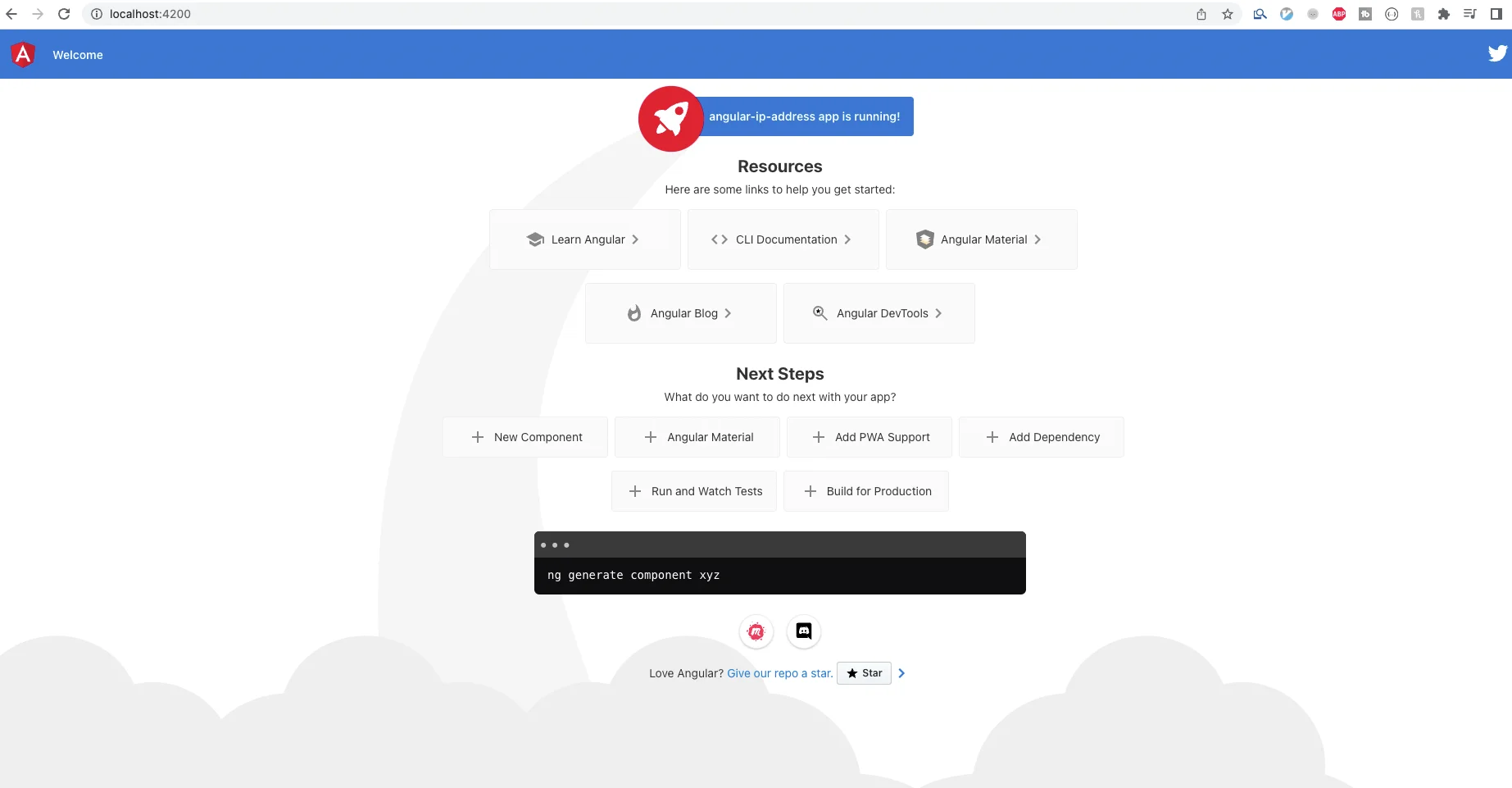
Open app.component.html in your IDE (Visual Studio Code, for example) and remove everything between the outermost <div>s. Leave the <style> tags and the <router-outlet> tags (if you chose to have routing in your app.)
Now add a <p> tag inside the <div>s. This is where we'll render our client address.
<style>
...
</style>

<!-- Toolbar -->
<div>
  <p>This is where we'll show our IP</p>
</div>

<!-- * * * * * * * * * * * * * * * * * * * * * * * * * * * * * * * -->
Import Httpclientmodule
We'll need the httpclient from angular common to send our request to the API. Import it into app.module.ts (the module file, also called the service file.)
import { NgModule } from '@angular/core';
import { BrowserModule } from '@angular/platform-browser';

import { AppRoutingModule } from './app-routing.module';
import { AppComponent } from './app.component';
import { HttpClientModule } from '@angular/common/http';

@NgModule({
  declarations: [
    AppComponent
  ],
  imports: [
    BrowserModule,
    AppRoutingModule,
    HttpClientModule
  ],
  providers: [],
  bootstrap: [AppComponent]
})
export class AppModule { }
Get Started With AbstractAPI
To use the AbstractAPI endpoint, you'll need to sign up for a free account and get an API key. Head over to the geolocation API homepage and click "Get Started."
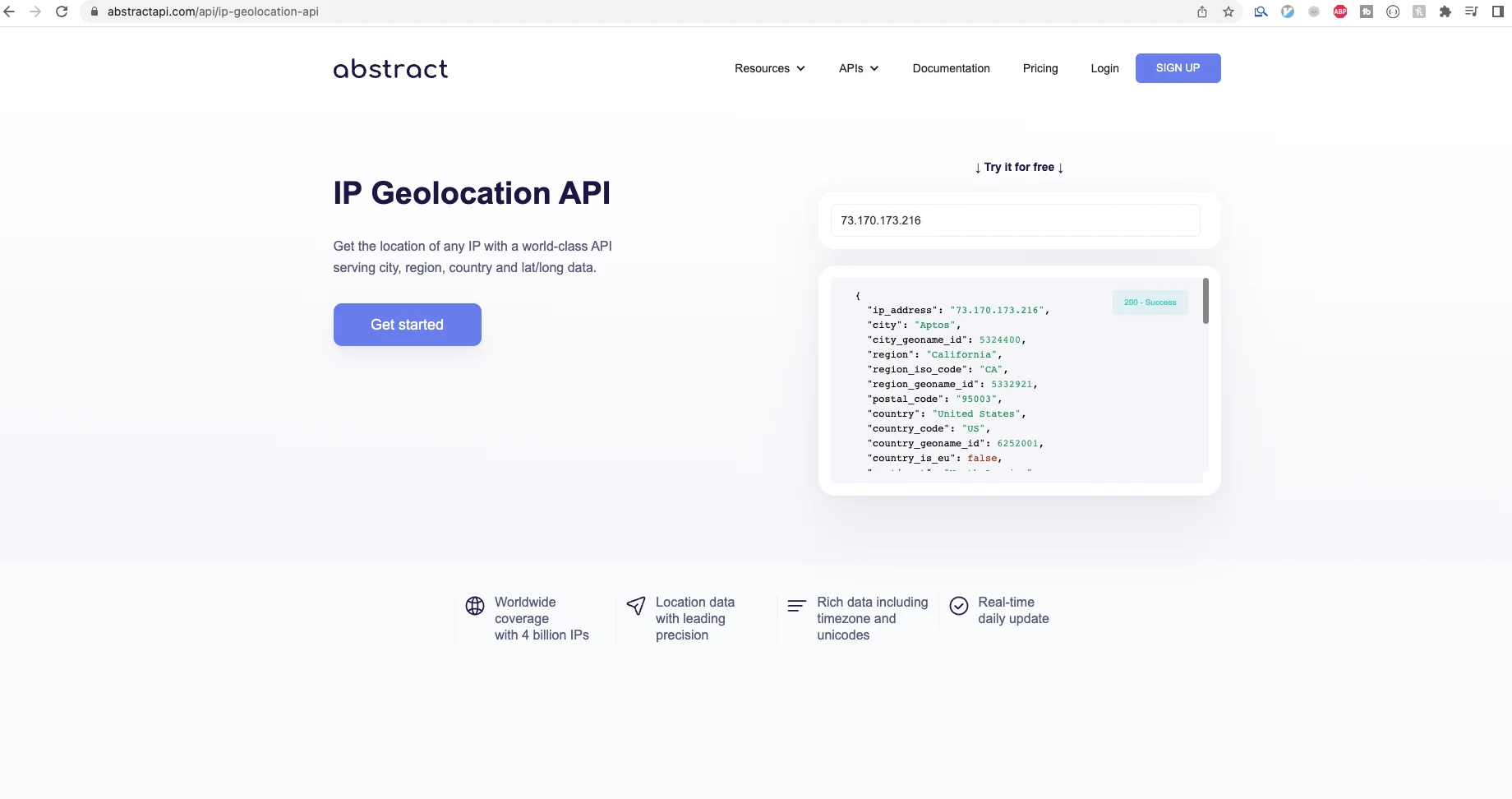
If you've never used AbstractAPI before, you'll be asked to input your email and a password. If you've used AbstractAPI before, you may need to log in. Once you're in, you'll land on the dashboard. You should see links to documentation and pricing, as well as your API key.
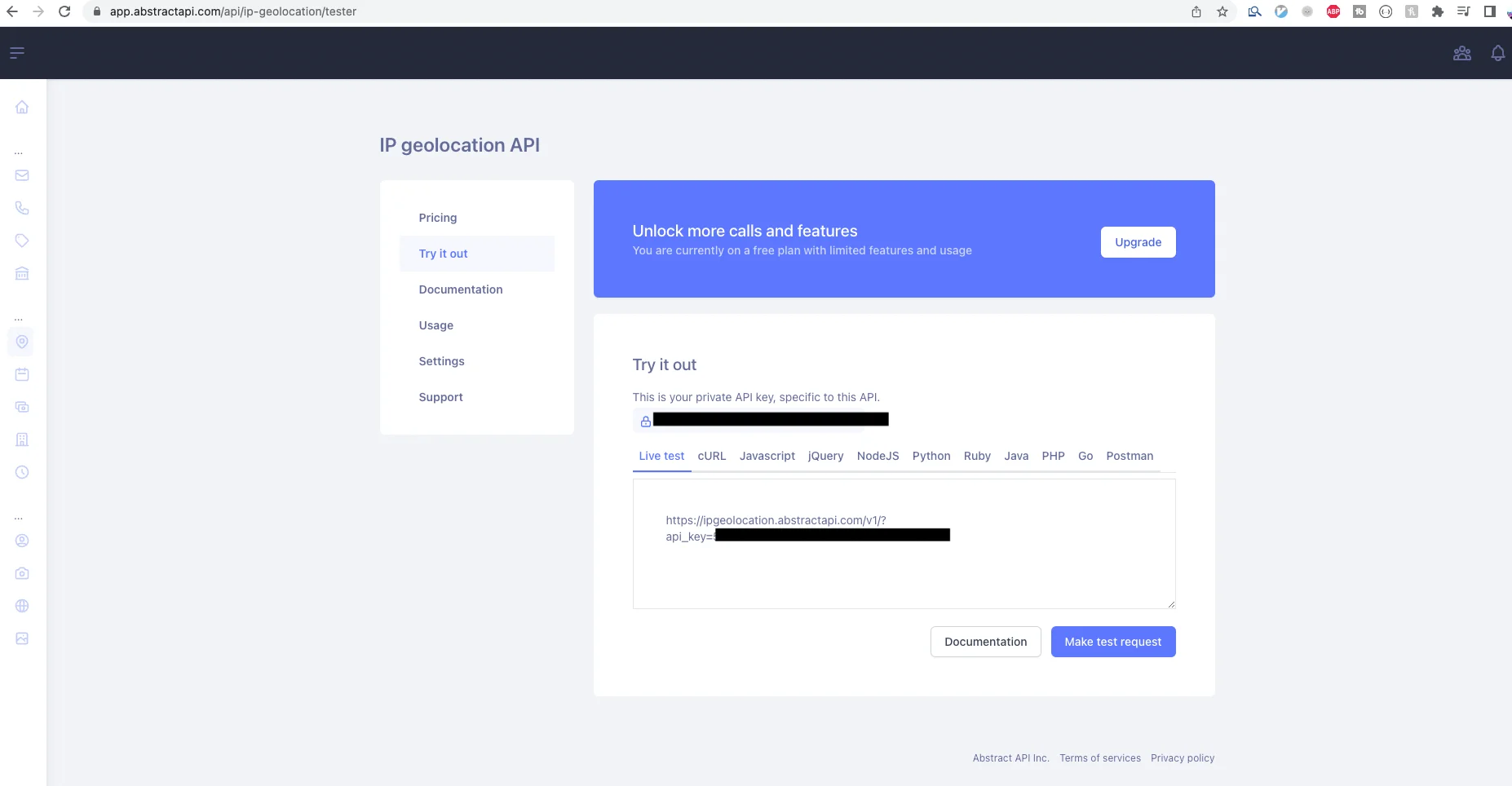
Copy the URL and the API key into variables in your component file (app.component.ts.) Use string interpolation to create a complete URL.
Get Client IP Address
Write a function named getIpAddress inside the component file. This function will handle sending the request to the endpoint.
Create a variable called ipAddress in the component file, and initialize it with an empty string. This is where we'll put our string, and it's the variable we'll render inside our <p> tag in app.component.html.
import { Component } from '@angular/core';
import { HttpClient  } from '@angular/common/http';

@Component({
  selector: 'app-root',
  templateUrl: './app.component.html',
  styleUrls: ['./app.component.css']
})
export class AppComponent {
  title = 'angular-ip-address';
  api_key = 'YOUR API KEY';
  url = 'https://ipgeolocation.abstractapi.com/v1/?api_key=' + this.api_key;

  ipAddress = '';

  constructor(private http:HttpClient) { }

  ngOnInit() {
      this.getIPAddress();
  }

  getIPAddress()
  {
    this.http.get(this.url).subscribe((res:any)=>{
      console.log(res.data)
    });
  }
}
Handle the API Response
The API will return a JSON object like the following
{
  "ip_address": "166.171.248.255",
  "city": "Modesto",
  "city_geoname_id": 5373900,
  "region": "California",
  "region_iso_code": "CA",
  "region_geoname_id": 5332921,
  "postal_code": "95353",
  "country": "United States",
  "country_code": "US",
  "country_geoname_id": 6252001,
  "country_is_eu": false,
  "continent": "North America",
  "continent_code": "NA",
  "continent_geoname_id": 6255149,
  "longitude": -120.997,
  "latitude": 37.6393,
  "security": {
    "is_vpn": false
  },
...
}
For now, we just want to display the IP string, so we'll pull that value out in the response and assign it to our ipAddress variable. Replace the console.log statement with the variable assignment.
    this.http.get(this.url).subscribe((res:any)=>{
      this.ipAddress = res.data.ip_address;
    });
Now, we need to render that variable inside our <p> tag in app.component.html. Remove the placeholder text you added and replace it with the variable inside handlebar syntax (interpolation brackets.)
<!-- Toolbar -->
<div>
  <p>{{ipAddress}}</p>
</div>

<!-- * * * * * * * * * * * * * * * * * * * * * * * * * * * * * * * -->
Head back to https://localhost:4200 to see your IP address rendered in the browser.

Conclusion
In this article, we looked at how to get the client IP address in an Angular application, and how to render the string . Now that we have the client IP address, we can send it to the server and use it to serve localized content or other tailored user experiences.
FAQs
How Do You Get Local IP Address in AngularJS?
The easiest way to get the system IP address in Angular is to send an HTTP request to a free service that returns information about addresses. One such service is AbstractAPI's Free Geolocation Endpoint.
How Do I Find My Computer's IP Address in Node JS?
To find your IP address in Node, pull the client IP address from the incoming HTTP request object. If you are using Express, access the socket field of the Express request object, and then look up the remoteAddress property of that field.
The remoteAddress refers to the address of the client that made the request. When you're running the app in development, this will be the loopback address: 127.0.0.1 for IPv4 and ::1 for IPv6.
Frequently Asked Questions
How do you get a client's IP address in an Angular app?
The most common approach is to make an HTTP GET request to an IP geolocation API such as AbstractAPI's endpoint. You import HttpClientModule into your app module, inject HttpClient into your component, and call the API inside ngOnInit() or a dedicated method. The API responds with a JSON object that includes the client's IP address and optional location data.
Why do I see 127.0.0.1 or ::1 when testing locally?
Those are loopback addresses: the address your machine uses to refer to itself. Any IP geolocation API will return the loopback address when the request originates from localhost during development. Deploy your app to a public server or use a tunneling tool like ngrok to see a real external IP address returned.
What Angular module is required to make HTTP requests?
You need to import HttpClientModule from @angular/common/http and add it to the imports array in your app.module.ts. Once registered, you can inject HttpClient into any component or service constructor and use its get() method to call external APIs.
What data does AbstractAPI's IP geolocation endpoint return beyond the IP address?
In addition to the ip_address field, the API returns geographic details including city, region, country, postal code, latitude, and longitude. It also includes security-related flags useful for fraud detection and access control. All of this comes back in a single JSON response from one request.
Should I call the IP geolocation API from the Angular frontend or from a backend server?
For simple use cases like displaying a user's location, calling the API directly from Angular is fine. For security-sensitive scenarios (such as fraud detection or access control), it is better to make the request from a Node.js or Express backend so your API key is never exposed in client-side code.
What is the difference between AngularJS and Angular when fetching an IP address?
AngularJS (version 1.x) uses the built-in $http service to make HTTP requests, while modern Angular (version 2 and above) uses HttpClient from the @angular/common/http package. The underlying logic is the same: send a GET request to an IP API and read the response. The syntax, module setup, and TypeScript typing differ between the two frameworks.
